Incident Investigation
Understanding Network Traffic During an Investigation
Level: Intermediate
12 min read

Windows Security Event Logs Level: Intermediate
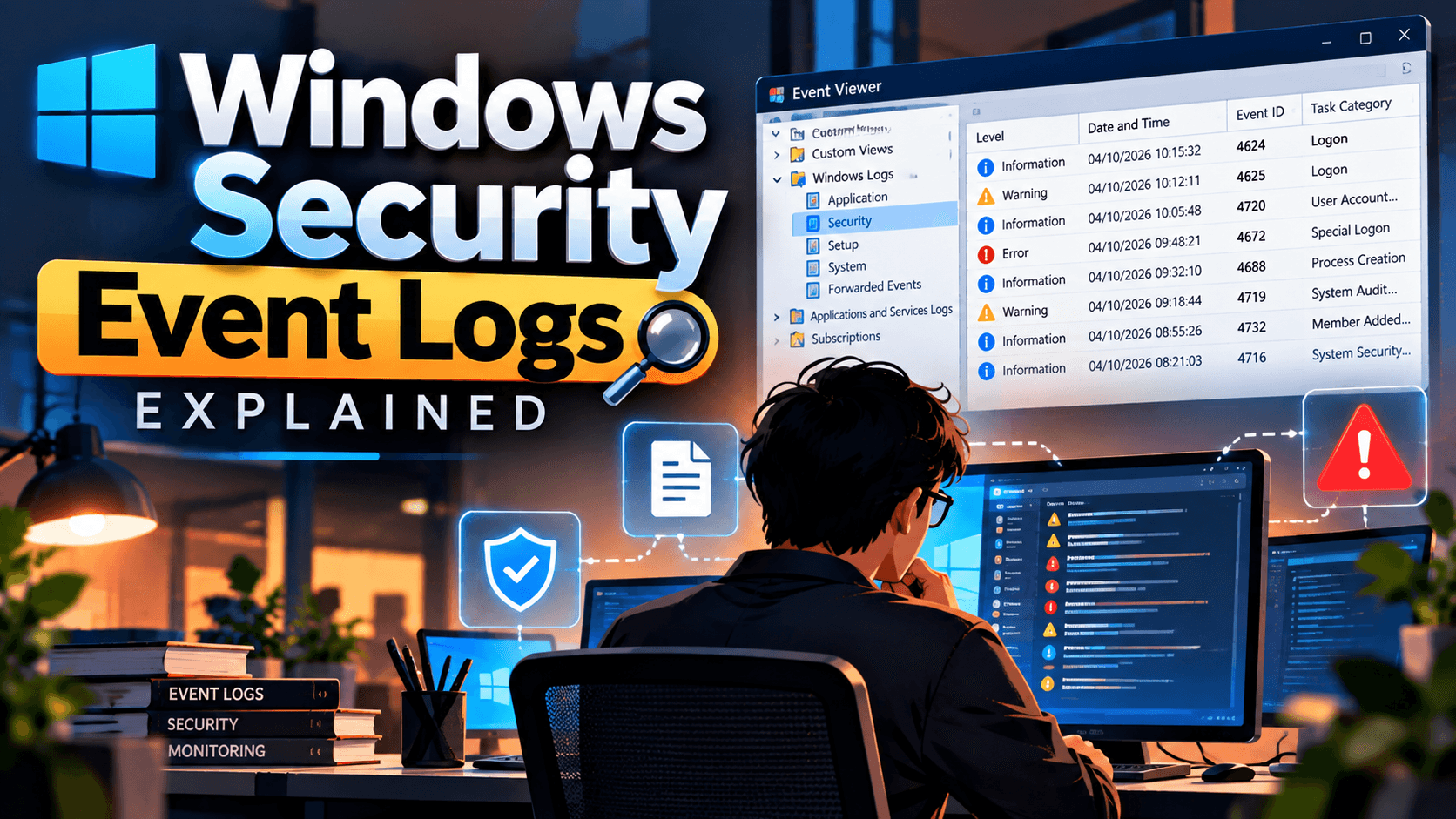
For cybersecurity professionals, Windows Security Event Logs are one of the most important sources of evidence for detecting and investigating suspicious activity.
A SOC analyst can use these logs to answer questions such as:
Who logged into the system?
Was the login successful or unsuccessful?
Which account was used?
Where did the login originate?
Was a new account created?
Were privileges assigned?
Was an account disabled or modified?
Were security logs cleared?
Was a suspicious process executed?
Did an attacker attempt lateral movement?
Windows Event Logging is a mechanism that records activities occurring on a Windows system.
Security-related events are primarily stored in the Windows Security log.
The logs can be viewed using:
Event Viewer → Windows Logs → Security
Windows records events using unique Event IDs.
For example:
Event ID: 4624 Description: An account was successfully logged onAnother example:
Event ID: 4625 Description: An account failed to log onThe Event ID tells an analyst what type of activity occurred, while the other fields provide the context required for investigation.
Security logs provide visibility into authentication, account management, privilege usage, and other security-related activity.
They are useful for:
Identifying potentially malicious activity.
Understanding what happened during an incident.
Searching historical events for attacker behavior.
Reconstructing activity after a compromise.
Maintaining evidence of security-related activity and access.
A Windows event contains several important fields.
A typical event may contain:
FieldPurposeEvent IDIdentifies the type of eventTime CreatedWhen the event occurredComputerSystem that generated the eventAccount NameUser associated with the activityDomainAccount domainLogon TypeType of authentication sessionSource Network AddressSource IP address, when availableProcess NameProcess associated with the activityAuthentication PackageAuthentication mechanism usedSubject AccountAccount performing the actionTarget AccountAccount affected by the actionThe exact fields vary depending on the Event ID and Windows configuration.
Some of the most useful Event IDs for SOC analysts include:
Event IDDescription4624Successful logon4625Failed logon4634Account logged off4647User initiated logoff4648Logon attempted using explicit credentials4672Special privileges assigned to new logon4688New process created4697Service installed4698Scheduled task created4699Scheduled task deleted4700Scheduled task enabled4701Scheduled task disabled4702Scheduled task updated4720User account created4722User account enabled4723Attempt made to change account password4724Attempt made to reset account password4725User account disabled4726User account deleted4728Member added to security-enabled global group4732Member added to security-enabled local group4738User account changed4740User account locked out4768Kerberos authentication ticket requested4769Kerberos service ticket requested4771Kerberos pre-authentication failed4776Domain controller attempted to validate account credentials1102Security audit log was clearedThese Event IDs are particularly useful when investigating authentication attacks, account compromise, privilege escalation, persistence, and lateral movement.
4624 indicates that an account successfully logged on.
This is one of the most frequently investigated Windows security events.
Important fields can include:
Account name
Domain
Logon Type
Source Network Address
Workstation Name
Authentication Package
Logon ID
A successful logon by itself is not malicious.
The analyst must determine whether the authentication was expected.
Suppose a user normally works from India but a successful authentication appears from an unexpected location.
The analyst may investigate:
4624 → Source IP → User → Device → Location → Other authentication events
The source IP can then be investigated using threat intelligence and historical authentication data.
The Logon Type field is extremely useful when analyzing Event ID 4624 and 4625.
Common logon types include:
Logon TypeMeaning2Interactive3Network4Batch5Service7Unlock8NetworkCleartext9NewCredentials10RemoteInteractive11CachedInteractiveUsually represents a user logging on directly to the Windows system.
Commonly associated with network-based access to resources.
For example, accessing a shared folder.
Associated with services running under an account.
Commonly associated with Remote Desktop Protocol (RDP) sessions.
An unexpected Type 10 logon can therefore be an important investigation lead.
Event ID 4625 indicates that a logon attempt failed.
A single failed login is generally not suspicious.
However, a large number of failures may indicate:
Brute-force activity
Password spraying
Incorrect credentials
Misconfigured applications
Expired passwords
Automated services repeatedly attempting authentication
If many users are targeted with the same or similar authentication pattern, a SOC analyst should consider password spraying.
Event ID 4648 indicates that a logon was attempted using explicit credentials.
This can be legitimate—for example, administrators or applications may intentionally use alternate credentials.
However, it can also be valuable during investigations involving:
Credential abuse
Lateral movement
Administrative activity
Suspicious use of alternate accounts
The event should therefore be correlated with the user, process, destination system, and surrounding events.
Event ID 4672 indicates that special privileges were assigned to a new logon.
This can be expected for highly privileged accounts such as administrators.
However, it becomes important when a privileged account appears unexpectedly.
An investigation may ask:
Who logged in?
From where?
When?
Was the account expected to have these privileges?
What activity followed the privileged logon?
A useful investigation pattern is:
4624 → 4672 → 4688 → Other activity
This can help establish what happened after a privileged session was created.
Event ID 4688 records the creation of a new process when appropriate auditing is enabled.
This event is extremely useful for threat detection.
Important fields can include:
New Process Name
Process ID
Parent Process
Command Line
Creator Account
For example:
Parent Process: powershell.exe New Process: cmd.exe Account: user123An analyst can investigate whether this process relationship is expected.
Process creation logs are especially useful for identifying:
Suspicious PowerShell activity
Command execution
Malware execution
Scripting activity
LOLBin abuse
Persistence mechanisms
Command-line logging is particularly valuable, but visibility depends on audit policy and Windows configuration.
Scheduled tasks are legitimate Windows functionality but can also be abused for persistence.
Important events include:
4698 — Scheduled task created
4699 — Scheduled task deleted
4700 — Scheduled task enabled
4701 — Scheduled task disabled
4702 — Scheduled task updated
For example:
New scheduled task ↓ Runs PowerShell ↓ Downloads or executes content ↓ PersistenceAn unexpected scheduled task running from a temporary or unusual directory deserves investigation.
Event ID 4720 indicates that a user account was created.
Account creation can be completely legitimate.
However, attackers may create accounts to establish persistence.
An investigation should determine:
Who created the account?
What is the new account?
When was it created?
Is there a legitimate business reason?
What groups was it added to?
Did the account subsequently log in?
A useful correlation is:
4720 → 4732/4728 → 4624
This may show:
Account Creation → Group Membership Change → Successful Logon
Several Event IDs are useful for tracking changes to accounts.
Event IDActivity4722Account enabled4723Password change attempt4724Password reset attempt4725Account disabled4726Account deleted4738User account changed4740Account locked outThese events can help identify suspicious account manipulation.
For example, an attacker who compromises an administrator account may attempt to modify another account or create persistence.
Attackers may attempt to increase privileges by adding accounts to privileged groups.
Important events include:
4728 — Member added to a security-enabled global group
4732 — Member added to a security-enabled local group
These events are important when monitoring groups such as:
Administrators
Domain Admins
Other privileged security groups
A suspicious pattern could look like:
Compromised Account ↓ Added to Privileged Group ↓ Privileged Access ↓ Lateral Movement / Data AccessWindows Active Directory environments heavily rely on Kerberos for authentication.
Important Kerberos-related Event IDs include:
A Ticket Granting Ticket (TGT) request is recorded.
A service ticket request is recorded.
Indicates a failed Kerberos pre-authentication attempt.
Records attempts by a domain controller to validate account credentials.
These events can be valuable when investigating:
Password attacks
Kerberos abuse
Kerberoasting
Suspicious authentication
Account compromise
Lateral movement
Event ID 1102 indicates that the Windows Security audit log was cleared.
This is an important security event.
Attackers may attempt to clear logs to remove evidence of their activity.
However, administrators may also legitimately clear logs during maintenance or troubleshooting.
Therefore, an analyst should investigate:
Who cleared the log?
Which system was affected?
When did it happen?
Was there an approved maintenance activity?
What happened immediately before the log was cleared?
A suspicious sequence might be:
4624 — Successful Logon ↓ 4688 — Suspicious Process ↓ Other malicious activity ↓ 1102 — Security Log ClearedThis correlation can be much more meaningful than looking at Event ID 1102 alone.
One of the most important concepts in Windows log analysis is:
Do not investigate an Event ID in isolation.
A single event often provides only one piece of information.
For example:
4624 Successful Logondoes not tell you whether the activity was malicious.
But:
4624 → Successful Logon 4672 → Privileged Access 4688 → Suspicious Process 4698 → Scheduled Task Created 1102 → Security Log Clearedcreates a much stronger investigative picture.
This is why SIEM platforms correlate multiple events across systems and time.
Suppose a SOC receives an alert for suspicious RDP activity.
Look for:
4624
Check:
Account
Source IP
Logon Type
Time
Destination host
For RDP, Logon Type 10 is particularly relevant.
Search for:
4625
Determine whether there were repeated failed attempts before the successful login.
Search for:
4672
Determine whether the account received special privileges.
Search for:
4688
Look for suspicious processes launched after the login.
Look for:
4698
4702
Account modification events
Service installation events
Example:
10:01 — Multiple failed logons 10:05 — Successful RDP logon 10:06 — Special privileges assigned 10:08 — PowerShell process created 10:12 — Scheduled task created 10:20 — Security log clearedThe sequence provides significantly more context than any individual Event ID.
Although the Security log is particularly important, analysts should not rely on it alone.
Contains security auditing information such as:
Authentication
Account management
Privilege use
Security policy-related activity
Contains events related to:
Windows services
Drivers
System components
Operating system activity
Contains events generated by applications.
PowerShell can provide additional visibility into script and command activity when appropriate logging is enabled.
Sysmon (System Monitor) from Microsoft Sysinternals can provide additional endpoint telemetry beyond standard Windows Security logging.
Common Sysmon events can provide visibility into:
Process creation
Network connections
File creation
Process access
Registry activity
DNS queries
Sysmon is often valuable for deeper endpoint investigations.
In enterprise environments, Windows logs are commonly forwarded to a centralized SIEM.
A simplified architecture looks like:
Windows Endpoint ↓ Windows Event Logs ↓ Log Collection / Forwarding ↓ SIEM ↓ Correlation Rules ↓ Security Alert ↓ SOC InvestigationExamples of SIEM platforms include:
Microsoft Sentinel
Splunk
Elastic Security
IBM QRadar
Centralized logging allows analysts to correlate activity across multiple systems.
For example:
Endpoint A ↓ 4625 Failed Logons Endpoint B ↓ 4625 Failed Logons Domain Controller ↓ 4776 Credential Validation Endpoint C ↓ 4624 Successful LogonThis may reveal a broader authentication attack rather than isolated login failures.
Windows logs can provide evidence for many MITRE ATT&CK techniques.
Examples include:
ActivityPotential ATT&CK AreaPassword sprayingCredential AccessValid account usageInitial Access / PersistencePowerShell executionExecutionScheduled task creationPersistenceAccount manipulationPersistence / Privilege EscalationRemote services / RDPLateral MovementCredential dumpingCredential AccessLog clearingDefense EvasionThe Event ID itself does not automatically prove a particular MITRE ATT&CK technique.
Analysts should consider the surrounding context, behavior, and evidence before mapping an event to a technique.
When investigating a suspicious Windows event, ask:
Which user or account performed the activity?
What happened?
When did the event occur?
Which host generated the event?
What was the source IP, workstation, or originating system?
Which authentication method, process, service, or mechanism was involved?
Is there a legitimate business explanation?
Look for related events surrounding the activity.
These questions help transform individual logs into an actual incident timeline.
Failed authentication can happen for many legitimate reasons.
Attackers frequently use valid credentials.
Attack activity usually involves multiple events.
Timeline correlation is essential.
A privileged administrator account behaves differently from a standard user account.
The same login may be normal from one workstation but suspicious from another.
An Event ID is evidence of an activity, not automatically proof of malicious behavior.
Windows Security Event Logs provide a detailed record of activity occurring across Windows environments.
For a SOC analyst, the goal is not simply to memorize Event IDs. The more important skill is understanding how different events relate to one another.
A strong investigation typically combines:
Event ID + User + Host + Timestamp + Source IP + Process + Authentication Type + Historical Context
For example:
4625 Failed Authentication ↓ 4624 Successful Authentication ↓ 4672 Privileged Access ↓ 4688 Suspicious Process ↓ 4698 Persistence Created ↓ 1102 Security Log ClearedThis type of correlation can help security teams move from individual Windows events to a complete attack timeline.
Windows Event Logs are not just logs—they are evidence that can help reconstruct what happened on a system.
Continue reading
3 entries, most recent posts.
Level: Intermediate
Category: Phishing / Artificial Intelligence

Severity: High CVSS: 8.7 Affected Products: Citrix NetScaler ADC & NetScaler Gateway Attack Type: Denial of Service / Possible Remote Code Execution